 ultimate-guide
How to Connect Smart Devices From Different Brands
Table of Contents
- What You'll Need Before You Start Connecting Smart Devices
- Understanding Smart Device Connection Protocols and Ecosystems
- How to Connect Smart Devices From Different Brands Step by Step
- How to Use Matter for Smart Home Cross-Brand Compatibility
- Best Smart Home Integration Devices 2026: Hubs, Bridges, and Controllers
- Smart Home Automation Best Practices for Multi-Brand Setups
- Troubleshooting Common Smart Device Connection Problems
- Frequently Asked Questions
Last Updated: September 13, 2026
What You'll Need Before You Start Connecting Smart Devices
Connecting smart devices from different brands comes down to one thing: a shared language. If your devices speak different protocols, no app will save you. The good news is that the industry has spent the last few years standardizing that language.
Here's what you need before touching a single app:
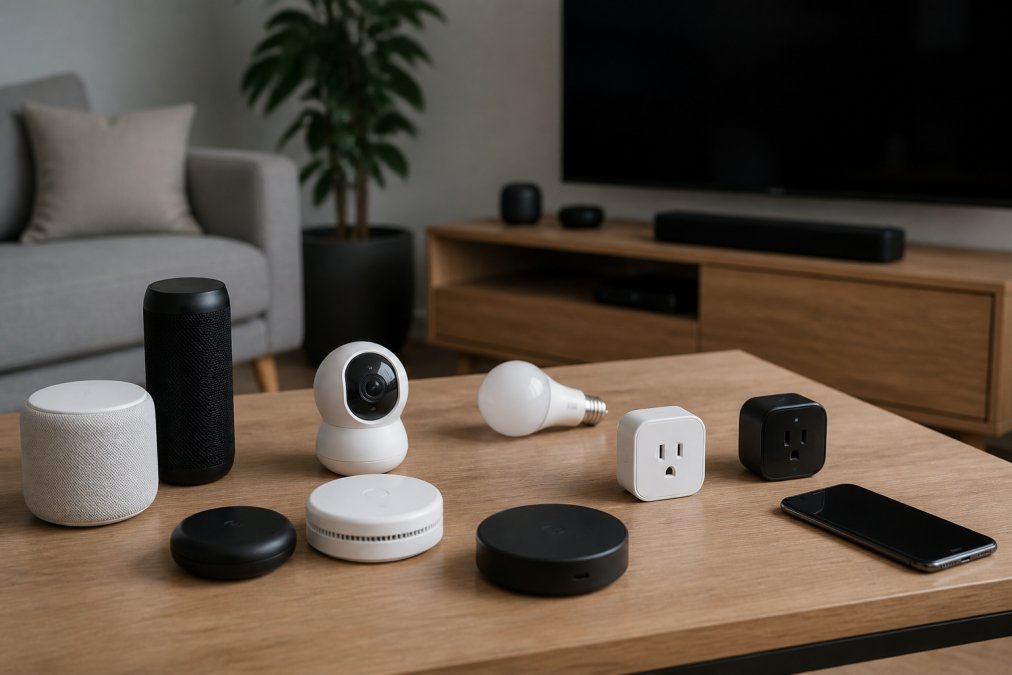
- A central smart home hub or a hub-capable app (Apple Home, Google Home, Amazon Alexa, or Samsung SmartThings)
- A stable Wi-Fi network running on a 2.4 GHz band for most devices
- The manufacturer apps for every device you own, even ones you plan to control elsewhere
- Your account credentials for each brand's ecosystem
- A phone or tablet with Bluetooth Low Energy enabled for initial pairing
Connectivity Standards Alliance, developer of the Matter specification
The single biggest mistake is buying devices before confirming they support a common standard. Check for Matter or a compatible hub before you buy, not after.
Understanding Smart Device Connection Protocols and Ecosystems
A smart home ecosystem is the software platform that controls your devices, while a communication protocol is the wireless language those devices use to talk to each other. Confusing these two layers is why so many multi-brand setups fail.
Wi-Fi, Bluetooth LE, Zigbee, Z-Wave, and Thread Explained
Each protocol trades off range, power, and compatibility differently:
| Protocol | Power Use | Range | Best For | Hub Required |
|---|---|---|---|---|
| Wi-Fi | High | Long | Cameras, large appliances | No |
| Bluetooth LE | Very low | Short | Setup, wearables | No |
| Zigbee | Low | Medium | Sensors, bulbs | Yes |
| Z-Wave | Low | Medium | Security, locks | Yes |
| Thread | Very low | Medium | Battery sensors, mesh | Yes (border router) |
Wi-Fi devices connect directly to your router, which makes them simple but power-hungry. Zigbee, Z-Wave, and Thread form mesh networks, where each device strengthens the signal for its neighbors. Thread is the newest and pairs natively with Matter.
How to Connect Smart Devices From Different Brands Step by Step
The fastest path to a unified setup is to build on one hub, pair devices through it, and link the rest through cloud integrations.
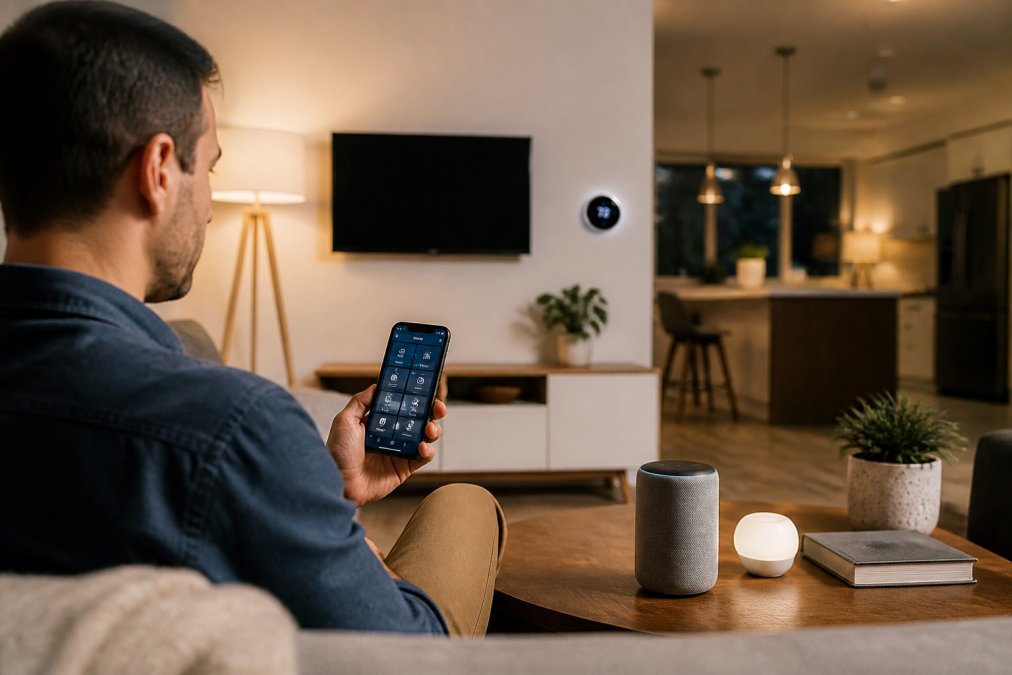
Step 1: Set Up a Central Smart Home Hub or App
Pick one platform as your primary controller. Apple Home, Google Home, Amazon Alexa, and SmartThings all support Matter, so any Matter-certified device can join regardless of who made it. Install the app, create your home, and connect your Wi-Fi network.
Step 2: Pair Each Device and Assign It to a Room
Put each device into pairing mode, usually by holding a button until an LED blinks. Add it through the hub's app, then assign it to a room and give it a clear name like "Kitchen Ceiling Light." Voice assistants rely on exact labels.
Step 3: Link Accounts and Enable Cloud-to-Cloud Integration
For brands that don't support Matter yet, use cloud-to-cloud integration. Open your hub's "Add Device" menu, choose the brand, and sign in with that brand's account. The hub pulls your devices across automatically, letting older hardware work alongside new gear.
How to Use Matter for Smart Home Cross-Brand Compatibility
Matter is an open interoperability standard, developed by the Connectivity Standards Alliance, that lets certified devices from different manufacturers work together without brand-specific workarounds. It runs on your existing IP network, Wi-Fi, Ethernet, or Thread, and defines a shared application layer so devices from any brand expose the same commands to any Matter controller.
The mechanism that matters most for cross-brand setups is multi-admin. When you commission a Matter device, you add it to a fabric, a cryptographic trust domain owned by a controller. Multi-admin lets you share that device across multiple fabrics at once, so the same bulb can be controlled by Apple Home and Google Home simultaneously without re-pairing. Each controller gets its own fabric credentials, and revoking one doesn't break the others.
Here's what the setup actually looks like in practice:
- Commission once. Scan the Matter QR code (or enter the 11-digit manual pairing code) in your primary hub's app. The hub becomes the first fabric administrator.
- Generate a sharing code. In the primary app, open the device and choose the option to share it, Apple Home calls this "Turn On Pairing Mode," Google Home generates a "Share" code, and SmartThings uses a similar flow. This produces a temporary code.
- Add to the second ecosystem. In the second app, choose "Add Matter device" and enter the sharing code. The device now lives in both fabrics.
Thread handles the low-power networking underneath. A Thread device doesn't connect to your router directly, it joins a Thread mesh and reaches the internet through a Thread Border Router, which bridges Thread traffic to your IP network. Many Matter hubs (Apple HomePod mini, Google Nest Hub, Amazon Echo fourth-gen and newer, SmartThings Station) include one built in. With more than one, Thread devices roam between them, so adding a second border router often fixes coverage gaps a single hub can't reach.
A few practical points that trip people up:
- Thread credentials are per-ecosystem. Your Apple Thread network and your Google Thread network are separate meshes unless you explicitly share credentials. A device commissioned into one won't automatically join the other's mesh, multi-admin shares control, not necessarily the radio network.
- Not every "Matter" device is a Thread device. Plenty of Matter devices run over Wi-Fi. They still benefit from multi-admin, but they don't need a border router.
- Firmware updates can add Matter support. Some hubs shipped before Matter launched gained it later via update, so check your hub's current firmware before assuming you need new hardware.
For older devices, a bridge solves the gap. A bridge is a hardware translator that exposes non-Matter devices, older Zigbee bulbs, legacy Z-Wave sensors, as Matter endpoints. The downstream devices appear to your Matter controller as if they were native, and a bridge is often cheaper than replacing everything.
Thread Group's overview of the Thread networking protocol
Best Smart Home Integration Devices 2026: Hubs, Bridges, and Controllers
Choosing the best smart home integration devices in 2026 means matching hardware to your existing protocol mix. Three categories cover almost every setup:
- Matter controllers for new, standard-compliant devices
- Multi-protocol hubs that speak Zigbee, Z-Wave, and Thread at once
- Bridge devices for legacy hardware that predates Matter
For a mixed-brand home, a multi-protocol hub is the safest single purchase. It future-proofs your setup and reduces the apps you juggle. NovexaTech LLC offers a curated selection of premium smart home devices designed to enhance your modern lifestyle.
Smart Home Automation Best Practices for Multi-Brand Setups
Smart home automation best practices start with structure: group devices into rooms and scenes before building routines. A scene sets several devices to preset states at once, like "Movie Night" dimming lights and closing blinds. A routine triggers those scenes automatically based on time, motion, or presence. Scenes are stateless snapshots and routines are event-driven, mixing them up is why automations fire twice or not at all.
Keep the logic simple at first. Build one routine at a time, test it, then add the next. Overlapping triggers, like two routines both reacting to motion, create hard-to-diagnose conflicts. Give each routine a single trigger and a single condition, then chain routines rather than stacking conditions.
Bridging brands with advanced automation platforms
When your hub's built-in automation engine can't reach across brands, two platforms fill the gap:
- IFTTT works as a cloud-to-cloud bridge. You connect each brand's service via OAuth, then write applets that say "if this service does X, tell that service to do Y." It's the fastest way to link two ecosystems without a native integration, but every applet runs in the cloud, so latency is typically a second or more and automations stop if your internet drops.
- Home Assistant runs locally on your own hardware, a Raspberry Pi, mini PC, or dedicated appliance. It speaks Matter, Thread (via a border router), Zigbee, and Z-Wave through USB radios or network-attached coordinators, and pulls in cloud services through integrations. Because logic executes locally, automations keep running when the internet is down, with response times in the tens of milliseconds rather than seconds.
The trade-off is real: Home Assistant asks more of you, updates, backups, and troubleshooting YAML or the visual editor. IFTTT asks almost nothing but gives less control and depends on the cloud.
Conditional logic that actually spans brands
Once you're on a platform like Home Assistant, the useful patterns are:
- State-based triggers, "when the front door unlocks AND the sun is below the horizon, turn on the entry light." This works across brands because Home Assistant normalizes each device into a common entity model.
- Numeric conditions, "if the thermostat reads below 68°F and someone is home, start the heater." You can pull the temperature from one brand's sensor and act on another brand's thermostat.
- Presence detection, combine phone-based geofencing with a motion sensor from a different brand so a single false positive doesn't trigger the whole house.
- Delays and re-checks, add a short wait and re-evaluate before acting, which prevents flapping when a sensor briefly drops offline.
Housekeeping that keeps multi-brand automations stable
- Name every device and scene consistently across apps.
- Use one hub as the source of truth, duplicate control paths cause race conditions.
- Update firmware on a schedule, since patches fix compatibility bugs and Matter certification updates.
- Keep a written list of which app controls which device and which platform owns each automation.
- Back up your automation configuration before major changes, especially on local platforms.
Troubleshooting Common Smart Device Connection Problems
Most connection failures trace back to four causes: Wi-Fi band mismatches, outdated firmware, weak mesh coverage, or account sync errors. Fix them in that order.
- Device won't pair: Confirm it's on 2.4 GHz, not 5 GHz. Most smart devices can't see 5 GHz networks.
- Device drops offline: Move the hub or add a repeater. Mesh networks need enough nodes to stay strong.
- Cloud integration fails: Re-authenticate the linked account. Tokens expire and silently break the link.
- Commands lag: Check your hub's device count and processor load.
- Voice assistant won't respond: Re-run device discovery in the assistant's app.
Federal Trade Commission guidance on connected device security
A common mistake is factory-resetting a device before checking firmware. Update first. A reset wipes your settings and rarely fixes a compatibility issue that a patch would solve.
Frequently Asked Questions
Can I control all my smart home devices from one app?
Yes, in most cases. You can use a central smart home hub or a platform like Apple Home, Google Home, or Amazon Alexa to manage devices from different brands in one dashboard. Matter-certified devices are designed to work across these platforms, so you can control lights, locks, thermostats, and cameras from a single interface. Some brands still require their own app for advanced settings, but daily control can live in one place.
Do I need a smart home hub to connect devices from different brands?
Not always, but a hub makes cross-brand integration more reliable. Wi-Fi devices can often connect directly to your router and work through a voice assistant without a hub. However, devices using Zigbee, Z-Wave, or Thread need a hub or bridge to communicate. A hub also enables local control, which reduces latency and keeps automations running when your internet goes down. If you plan to mix brands, a hub is worth the investment.
What is the Matter standard and how does it help with device compatibility?
Matter is an interoperability standard backed by major tech companies that lets smart devices from different brands work together out of the box. When you buy a Matter-certified device, you can add it to any Matter-compatible platform, such as Apple Home, Google Home, or Amazon Alexa, without worrying about brand lock-in. Matter runs over Wi-Fi, Ethernet, or Thread, and it simplifies pairing by using a QR code or numeric code instead of multiple proprietary setup steps.
What should I look for when buying smart devices to ensure compatibility?
Check for the Matter logo first, as it guarantees cross-platform support. If Matter is not available, confirm the device works with your preferred ecosystem (Apple Home, Google Home, or Alexa) and uses a protocol your hub supports, such as Zigbee or Z-Wave. Look for cloud-to-cloud integration if you want to link accounts without a hub. Also verify the device supports the 2.4 GHz Wi-Fi band, since many smart devices do not connect to 5 GHz networks.
Getting different brands to cooperate is less about any single device and more about the architecture you build around them. NovexaTech LLC stocks the hubs, bridges, and smart controllers that make cross-brand integration straightforward, with a curated selection built for mixed ecosystems and a support team that helps you avoid the setup headaches most people hit. Get started with NovexaTech LLC and build a smart home where every device finally works together.